Introduction to the featured programs
The programs contained in FQHE_MC_sphere are run from the terminal. Assuming “[path]” is the folder path to the program, e.g. “~/fqhe_mc_sphere/”, for example Run_MC_sphere can be run as follows (if the programs are added to the system path, [path] can be left blank):
[path]Run_MC_sphere
So in the example above:
~/fqhe_mc_sphere/Run_MC_sphere
In the remainder it will be assumed that the relevant program is in the system path and can simply be run as
Run_MC_sphere
Input options
What the program computes depends on the user input, which is given in the form “-[option] [value].” For example, to set the option Ne (which gives
the number of electrons in the Monte Carlo) to use 10 electrons:
Run_MC_sphere -Ne 10
To see a list of the input options for any program run with -h, e.g.
CF_states -h
This should give the following output (bar modifications done after the time of writing):
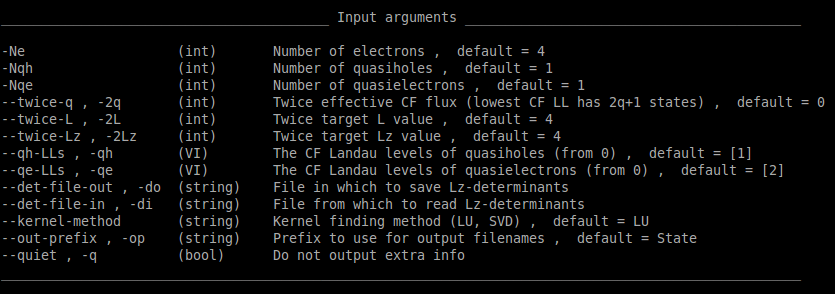
Note that there are three columns describing the input options.
- 1st column: name of the option, i.e. what should be used when running the program (
-Nein the example above). There are often two possibilities (separated by a comma); one descriptive and one short. - 2nd column: describes what kind of input the program expects for each option (see below).
- 3rd columnn: short description of what the option does, together with the default value when present.
Kinds of input
Different input options have different syntax for the input value(s). The table below shows the possibilities, together with examples:
| Input type | Description | Example input | Result |
|---|---|---|---|
| int | Single integer | 5 | 5 |
| double | Single decimal number | -0.25 | -0.25 |
| CD | Complex number | 0.5 -4 | 0.5-4i |
| string | Single word of text | data.txt | data.txt |
| char | Single symbol | A | A |
| VI | Vector of integers | -1 2 0 | [-1,2,0] |
| VD | Vector of decimals | 0.1 4 -1.75 | [0.1,4,-1.75] |
| VCD | Vector of complex numbers | 1 -1 0 0.5 | [1-i,0.5i] |
| VS | Vector of text | 0.dat 1.dat 2.dat | [0.dat,1.dat,2.dat] |
| bool | Switch that will turn on option |
Note that different elements of a vector are seperated by spaces, and the same goes for the real and imaginary parts of complex numbers. The “bool” options
are different in that they have no value following the option name; they will simply turn on the corresponding option. An example using some of the options
of CF_state:
CF_state -Ne 6 -Nqh 2 -Nqe 2 --twice-q 5 --twize-L 0 --twice-Lz 0 --qh-LLs 0 0 --qe-LLs 1 2 --out-prefix states --quiet
Important: There is one exception to the input syntax of the table above; the options “-wi”, “-ei”, “-pi” and “-bi” of the program Analyse_MC.
See here for the syntax of these input options.
File formats
There are two fileformats used within the programs. The first is normal text files, often comma separated (in some programs there is an option to use space separated instead). The second is hdf5 files, a binary format with some structure including metadata.
In general a hdf5 file can contain several datasets, which for our purposes will consist of floating numbers arranged in rows and columns like a
matrix. A useful tool for writing the contents of a hdf5 to the screen is h5dump. It can be run with the option -H to instead just show
the datasets and number of rows and colums in these for a given file. It should be installed with the hdf5 library.
The program HDF5Utility has some additional features to handle hdf5 files. Running HDF5Utility -H to see the options should give
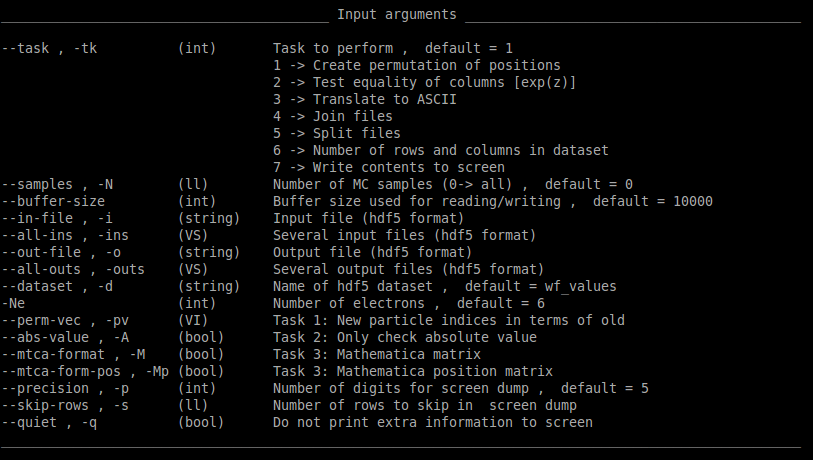
Let’s look at an example: assume there is a hdf5 file called “configurations.dat” that contains a dataset “positions”, which has 1000 rows and 12 columns. If we want to split this along the rows into 10 files, numbered from 1 to 10 and contaning 100 rows each, we can run
HDF5Utility --task 5 --samples 1000 --in-file configurations.dat --all-outs 1.dat 2.dat 3.dat 4.dat 5.dat 6.dat 7.dat 8.dat 9.dat 10.dat --dataset positions
Note that such inputs and others can be simplified using Handy bash terminal commands. Also note that when several files pertain to the same data it can be a good
idea to order it as in the above for use with the --read-folder option of Analyse_MC, which then uses folders of sorted files as input.
Handy bash terminal commands
It is often practical to use bash commands in conjunction with the featured programs. This can be for example if there is a set of programs that will be run several times with small changes in the input options; in this case it can be a good idea to create a bash script whose variables can be altered. Another example is when we just want to avoid repetitional typing etc. and can use inline bash commands instead.
Bash scripts
Here is an introduction to bash scripts and here is a list of bash commands. The first line of a script is always
#!/bin/bash
After this the commands follow.
Let’s assume we want to compute 500000 samples of the Laughlin wavefunction at nu=1/3 and 10 particles, using 5 cores, and then compute the energy of this state using all the samples. The most straightforward way to obtain the samples is then (see Run_MC_sphere_tut and Analyse_MC_tut for explanations of the input options)
mkdir wf pos log
Run_MC_sphere -Ne 10 --wavefunction L -m 3 --samples 100000 --wf-outfile wf/0.hdf5 --pos-outfile pos/0.hdf5 --seed 0 > log/MC_0.log &
Run_MC_sphere -Ne 10 --wavefunction L -m 3 --samples 100000 --wf-outfile wf/1.hdf5 --pos-outfile pos/1.hdf5 --seed 1 > log/MC_1.log &
Run_MC_sphere -Ne 10 --wavefunction L -m 3 --samples 100000 --wf-outfile wf/2.hdf5 --pos-outfile pos/2.hdf5 --seed 2 > log/MC_2.log &
Run_MC_sphere -Ne 10 --wavefunction L -m 3 --samples 100000 --wf-outfile wf/3.hdf5 --pos-outfile pos/3.hdf5 --seed 3 > log/MC_3.log &
Run_MC_sphere -Ne 10 --wavefunction L -m 3 --samples 100000 --wf-outfile wf/4.hdf5 --pos-outfile pos/4.hdf5 --seed 4 > log/MC_4.log &
The symbol > reroutes the screen output to files in the log-folder that we created, and the input --seed makes sure that we
don’t use the same random seed for each run. The symbol & decouples the running program from the terminal so that we can start several
and they run at the same time on different cores.
To examine the progress of one of the runs:
cat log/MC_0.log
The following bash script creates the samples and includes some variables that can be changed for later runs:
#!/bin/bash

WAVEFUNCTION=L
M=3
NE=10
FILES=5
SPERFILE=100000
WFDIR=wf
POSDIR=pos

mkdir -p $WFDIR $POSDIR log

for i in 0 1 2 3 4
  do
    Run_MC_sphere -Ne $NE --wavefunction $WAVEFUNCTION -m $M -N $SPERFILE --wf-outfile ${WFDIR}/${i}.hdf5 --pos-outfile ${POSDIR}/${i}.hdf5 --seed $i > log/MC_${i}.log &
done
Things to note in the script:
- Variables are referenced using
$, e.g.mkdir -p $WFDIR(the-pmeans there will be no error message if the folder already exists) - When the variable referenced is part of a longer “word” it should be enclosed in curly brackets; e.g.
${WFDIR}/${i}.hdf5. - The syntax of the for loop. The first line could also be written
for i in $(seq 0 4). Enclosing a command in$(...)means that the code is run and the brackets are replaced by the result.seqis a bash command creating sequences.
To run the script, save it as e.g. “MC_run.sh.” This can then be run using
bash MC_run.sh
When these programs finish we should have five files in the folders “wf/” and “pos/” with 100000 samples each. We then want to compute the energy of the state. For the error computation let’s use 10000 samples in each error bin:
Analyse_MC --observable energy -Ne 10 -Nphi 27 --read-folder --samples 500000 --bin-size 10000 --wf-input wf/ --pos-input pos/ --out-file energy.dat
The input variable -Nphi gives the number of magnetic flux through the sphere, and the results are stored to energy.dat and should be
something like
Energy,Energy_error,Energy_per_N_with_BG,Energy_per_N_with_BG_error
9.2824676920414024,0.00028102169746842785,-0.4325808656754031,2.8102169746842785e-05
Inline commands
Often it’s handy to use bash commands as part of the input without a script. The samples in the example above could also be obtained the following way:
for i in $(seq 0 4); do Run_MC_sphere -Ne 10 --wavefunction L -m 3 -N 100000 --wf-outfile wf/${i}.hdf5 --pos-outfile pos/${i}.hdf5 --seed $i > log/MC_${i}.log & done
Note that a semicolon is required after the first line in the for-loop syntax. To run these one at a time instead of simultaneously substitute a semicolon
for the &.
As another example similar the splitting of hdf5 files demonstrated at the end of File formats we could join the files created above:
HDF5Utility --task 4 --samples 500000 --all-ins $(for k in $(seq 0 4); do echo " "wf/${k}.hdf5; done) -o all_wf_values.hdf5 --dataset wf_values
HDF5Utility --task 4 --samples 500000 --all-ins $(for k in $(seq 0 4); do echo " "pos/${k}.hdf5; done) -o all_positions.hdf5 --dataset positions
Note the command substitution $(...) and the semicolons in the for loop. echo is a bash command that will print to screen whatever follows,
used here with an extra whitespace " " as per the input syntax explained in Kinds of input.
Also note that Run_MC_sphere will save wavefunction values in a hdf5 file using dataset with the name “wf_values” and configurations with the
name “positions” (hence the --dataset wf_values and --dataset positions respectively).